
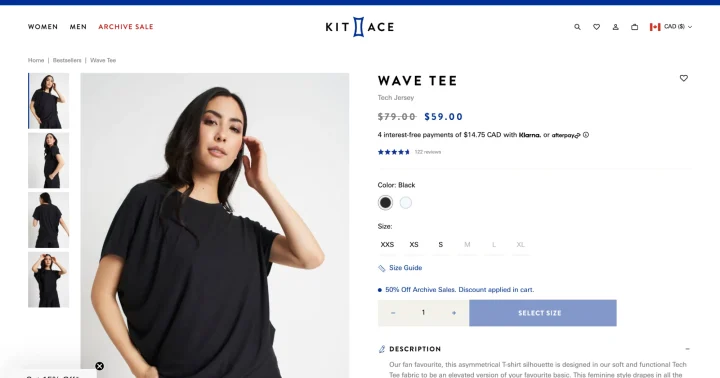
Your Shopify product page is where visitors make the final decision — to buy or bounce.
Even a small improvement, like a sticky “Add to Cart” button or a dynamic size guide, can increase sales dramatically. In this tutorial, we’ll show you custom code enhancements to make your product pages more engaging, informative, and conversion-focused.
🧩 Why Product Page Optimization Matters
- 🛍️ Increases Conversions: Clear calls to action drive faster decisions.
- 💬 Improves Trust: Tabs, reviews, and FAQs provide transparency.
- 🖱️ Enhances UX: Better navigation = longer on-page time.
- 📱 Mobile Friendly: Sticky and responsive features improve usability on phones.
1️⃣ Add Custom Tabs for Product Details
Instead of one long description, use tabs to organize information like Description, Specifications, and Shipping Info.
Code Example (Liquid + CSS):
Add this inside your product-template.liquid:
<div class="product-tabs">
  <ul class="tab-menu">
    <li data-tab="desc" class="active">Description</li>
    <li data-tab="specs">Specifications</li>
    <li data-tab="ship">Shipping</li>
  </ul>

  <div class="tab-content active" id="desc">{{ product.description }}</div>
  <div class="tab-content" id="specs">{{ product.metafields.custom.specs }}</div>
  <div class="tab-content" id="ship">{{ product.metafields.custom.shipping }}</div>
</div>

<style>
.tab-menu {display:flex;gap:15px;cursor:pointer;margin-bottom:10px;}
.tab-menu li.active {font-weight:bold;border-bottom:2px solid #000;}
.tab-content {display:none;}
.tab-content.active {display:block;}
</style>

<script>
document.querySelectorAll('.tab-menu li').forEach(tab=>{
  tab.addEventListener('click',()=>{
    document.querySelectorAll('.tab-menu li').forEach(t=>t.classList.remove('active'));
    document.querySelectorAll('.tab-content').forEach(c=>c.classList.remove('active'));
    tab.classList.add('active');
    document.getElementById(tab.dataset.tab).classList.add('active');
  });
});
</script>
✅ Why It Works:
Tabs make your product page cleaner, organized, and easier to browse — perfect for stores with detailed packaging specs.
2️⃣ Add a Sticky “Add to Cart” Button
Keep the “Add to Cart” button visible as users scroll.
Code Example:
Add this snippet to your product-template.liquid:
<button class="sticky-cart">Add to Cart</button>

<style>
.sticky-cart {
  position:fixed;
  bottom:10px;
  left:50%;
  transform:translateX(-50%);
  background:#000;
  color:#fff;
  border:none;
  padding:12px 25px;
  border-radius:25px;
  z-index:1000;
  cursor:pointer;
  transition:background 0.3s;
}
.sticky-cart:hover {background:#333;}
</style>

<script>
document.querySelector('.sticky-cart').addEventListener('click',()=>{
  document.querySelector('form[action*="/cart/add"]').submit();
});
</script>
✅ Why It Works:
Encourages impulse purchases, especially on mobile — users can buy instantly without scrolling back up.
3️⃣ Add Image Zoom-on-Hover Feature
Allow shoppers to inspect your products more closely (especially for packaging textures and prints).
Code Example:
.product-image {
  width:100%;
  overflow:hidden;
}
.product-image img {
  transition:transform .3s ease;
}
.product-image img:hover {
  transform:scale(1.5);
}
✅ Why It Works:
It’s visual and engaging — especially for premium products like luxury rigid boxes or custom printed packaging.
4️⃣ Show Dynamic Price Updates for Variants
When users select different product variants, update the price dynamically.
Code Example:
document.querySelectorAll('select[name="id"]').forEach(select=>{
  select.addEventListener('change',e=>{
    const priceEl=document.querySelector('.price');
    const selected=e.target.options[e.target.selectedIndex];
    const price=selected.dataset.price;
    priceEl.textContent=`$${(price/100).toFixed(2)}`;
  });
});
✅ Why It Works:
Makes the buying process smoother — customers instantly see how variant selections affect the price.
5️⃣ Add Product Stock Indicator
Create urgency by showing limited stock messages.
Code Example:
{% if product.inventory_quantity < 10 and product.available %}
  <p class="stock-alert">🔥 Only {{ product.inventory_quantity }} left in stock!</p>
{% endif %}

<style>
.stock-alert {
  color:red;
  font-weight:bold;
  margin-top:10px;
}
</style>
✅ Why It Works:
Triggers urgency and drives faster purchase decisions.
6️⃣ Add an FAQ Dropdown
Answer common customer questions directly on the product page.
<div class="faq">
  <button class="faq-btn">What’s your return policy?</button>
  <div class="faq-content">We accept returns within 14 days of delivery.</div>
</div>

<style>
.faq-content{display:none;padding:10px 0;}
.faq-btn{background:none;border:none;text-align:left;width:100%;cursor:pointer;font-weight:bold;}
.faq-btn.active + .faq-content{display:block;}
</style>

<script>
document.querySelectorAll('.faq-btn').forEach(btn=>{
  btn.addEventListener('click',()=>btn.classList.toggle('active'));
});
</script>
✅ Why It Works:
Builds trust by addressing doubts right where users decide to buy.
🧠 Pro Tip: Add “You May Also Like” Carousel
Use related products to increase average order value.
{% for related in collections.all.products limit:4 %}
  <div class="related-item">{{ related.title }}</div>
{% endfor %}
Pair it with a CSS slider or Swiper.js for smooth scrolling.
💬 Final Thoughts
Shopify’s default product page is a solid start — but real conversions come from custom features that blend UX with psychology.
Adding sticky buttons, product tabs, zoom, and FAQs can easily improve your sales by 20–30% without installing extra apps.
Experiment, test your layout, and track conversions in your Shopify Analytics dashboard.
Previous: Smart Search and Filter Customization in Shopify
Next: Optimize Shopify Cart and Checkout for Higher Conversions